A practical guide to inspecting database schemas, browsing table records, analyzing storage engines, and executing global database-wide searches using the integrated phpMyAdmin Web Studio.
Integrated Database Studio
The control panel features phpMyAdmin Web Studio, a native database administration environment that eliminates the need for separate standalone authentication logins, manual credential entry, or external desktop GUI clients. With single-click access, administrators can inspect schemas, browse records, run ad-hoc queries, and perform deep database-wide searches across all tables simultaneously.
Tables & Schema
Live metrics on table engines, collations, row counts, and disk usage.
Database Search
Find strings, URLs, emails, and IDs across every table in seconds.
Instant Access
Direct authentication from the control panel with zero credential prompts.
Step 1: Accessing the Studio & Header Navigation
You can launch phpMyAdmin Web Studio through two direct entry points:
- Click the Open phpMyAdmin button in the top action bar of the Databases dashboard.
- Click the Open Studio action icon (external link symbol) on any specific database row to open the studio focused directly on that database.
Header Navigation Controls:
- Database Context Badge: Displays the currently active database name alongside total table count and disk size footprint.
- Database Selector Dropdown: Switch between databases instantly without leaving the studio interface.
- Back to Databases Button: Returns you to the main control panel database inventory screen.
Step 2: Inspecting Tables & Schema
Under the default Tables & Schema tab, the studio renders an overview of all tables belonging to the active database.
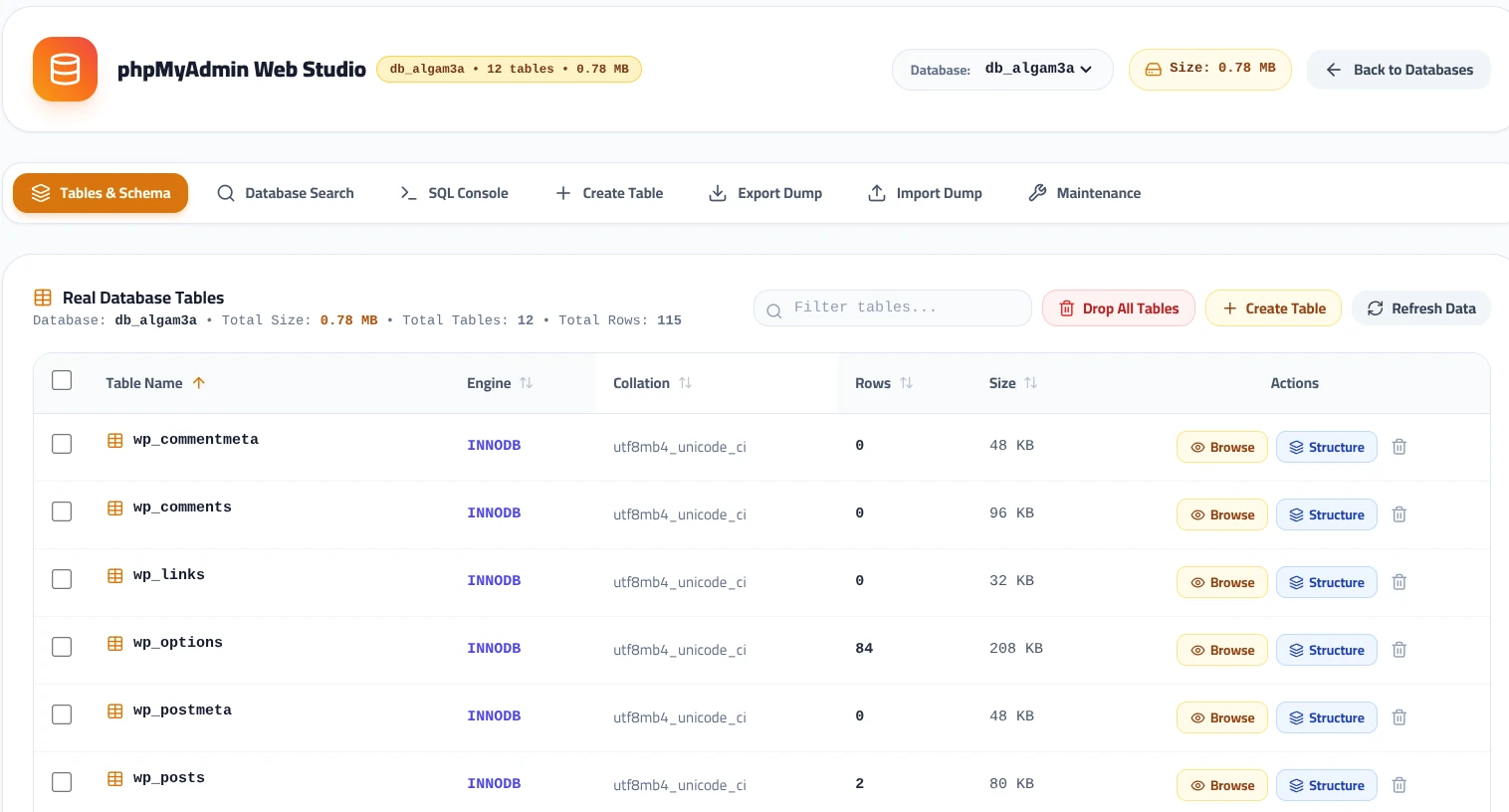
| Column | Description | Typical Production Standard |
|---|---|---|
| Table Name | The individual SQL table name (e.g., wp_options, wp_posts). |
Prefixed tables according to CMS standards. |
| Engine | Underlying MySQL storage engine handling transactions and locking. | INNODB (row-level locking, ACID compliant). |
| Collation | Character encoding rules governing text sorting and storage. | utf8mb4_unicode_ci (full UTF-8 and emoji support). |
| Rows & Size | Estimated active row records and physical disk allocation. | Identifies bloated tables requiring maintenance or cleanup. |
Table Action Buttons:
- Browse: Opens the table dataset in an interactive grid for pagination, inline cell editing, and sorting.
- Structure: Displays column specifications, primary keys, index configurations, and nullability rules.
- Filter tables input: Real-time search filter to locate specific tables instantly in large installations with hundreds of tables.
Step 3: Performing a Database-Wide Search
Locating specific strings (such as a hardcoded domain during website migration, a user email address, an API token, or a transaction reference) across dozens of tables is straightforward using the Database Search tab.
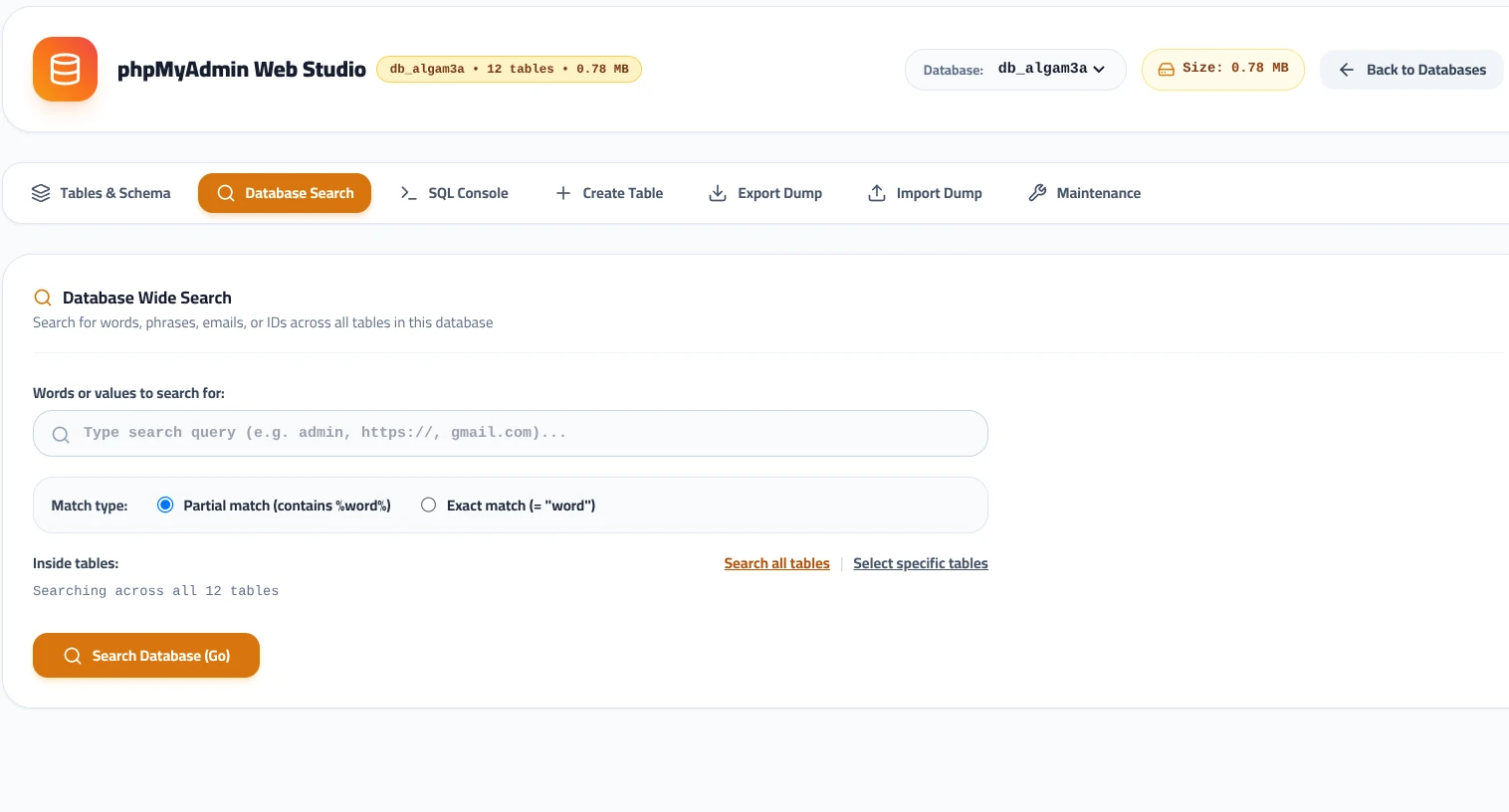
- Enter Search Term: Type your target keyword, domain, email, or numeric ID into the search query field (e.g.,
admin,https://, or[email protected]). - Choose Match Type:
- Partial match (contains %word%): Finds any cell that includes the search substring anywhere within its content (default and recommended for domain and URL lookups).
- Exact match (= “word”): Returns only records where the field value matches the string identically.
- Define Scope: Keep Search all tables selected to scan the entire database, or click Select specific tables to restrict execution to targeted tables (such as
wp_optionsandwp_posts) to accelerate query times on large databases. - Execute: Click the orange Search Database (Go) button. The studio scans the schema and groups matching rows by table for immediate review.
Use Case in Site Migrations:
Database Wide Search allows you to quickly locate remaining occurrences of old URLs or unencrypted HTTP references after installing an SSL certificate, verifying that all image paths and site options have been updated properly.
Step 4: Additional Web Studio Tools
The studio navigation bar includes specialized tools for administrative maintenance:
SQL Console
Execute raw ad-hoc SQL queries, run custom batch UPDATE or SELECT statements, and inspect returned query execution execution times.
Export & Import Dump
Generate instant SQL dump downloads from the browser or interface directly with the high-capacity SQL Dumps & Import Manager.
+ Create Table
Add new tables with custom primary keys, storage engine definitions, and character collations through an intuitive visual form.
Maintenance
Run database maintenance tasks including OPTIMIZE TABLE to reclaim disk space from deleted rows and REPAIR TABLE to rebuild corrupted index trees.