Learn how to configure dedicated Google Cloud OAuth 2.0 API credentials, authorize your control panel, and establish direct-to-cloud automated backups with custom remote directory isolation in MASACP.
1. Overview and Enterprise Cloud Isolation
MASACP delivers an isolated, zero-vendor-lock-in cloud backup architecture. Unlike traditional hosting control panels that force backups through shared proxy gateways or proprietary middleware, MASACP connects directly to your own Google Cloud infrastructure using your dedicated API keys.
This architecture provides multiple operational advantages:
- 100% Dedicated Quota: Backup transfers use your account’s dedicated Google Drive API quotas without rate-limiting risks caused by noisy neighbors.
- Data Privacy & Ownership: Backup archives stream straight from your server kernel into your personal or workspace Google Drive without passing through external servers.
- Custom Folder Partitioning: MASACP automatically structures and isolates backups into standardized directories (
websitesanddatabases) inside your defined target folder.
2. Enabling the Google Drive API in Google Cloud Console
To permit MASACP to communicate with Google Drive storage, you must enable the Google Drive API service within an active Google Cloud project.
- Navigate to the Google Cloud Console and select or create a project.
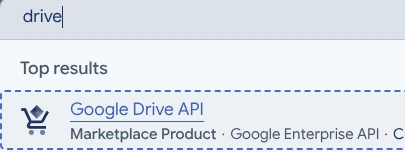
- In the top global search bar, type drive or Google Drive API.
- Select Google Drive API (Marketplace Product / Google Enterprise API) from the search results.
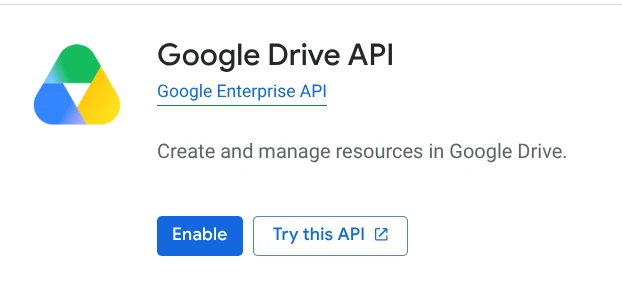
On the Google Drive API service page, click the blue Enable button. Once enabled, Google Cloud provisions the API endpoints and activates API metric counters for your project.
3. Configuring the OAuth Consent Screen
Google requires every application requesting OAuth credentials to register an OAuth consent screen. This defines your application identity and specifies authorized domain boundaries.
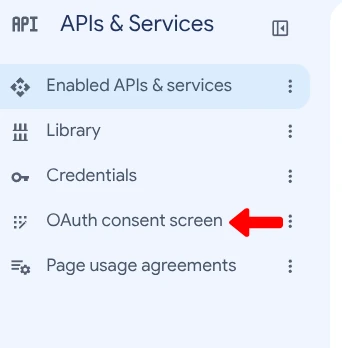
- From the left navigation menu, navigate to APIs & Services > OAuth consent screen (or Google Auth Platform).
- Select the user type as External and proceed to the configuration form.
Under the App information section, enter the following parameters:
- App name: Enter an identifiable name such as
masacp_googledriveorMASACP Backups. - User support email: Select your administrator email address from the dropdown list.
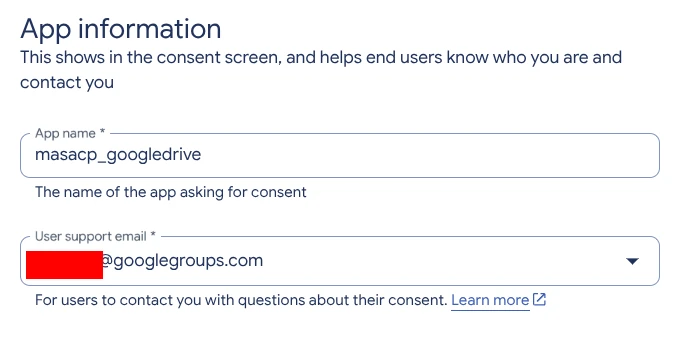
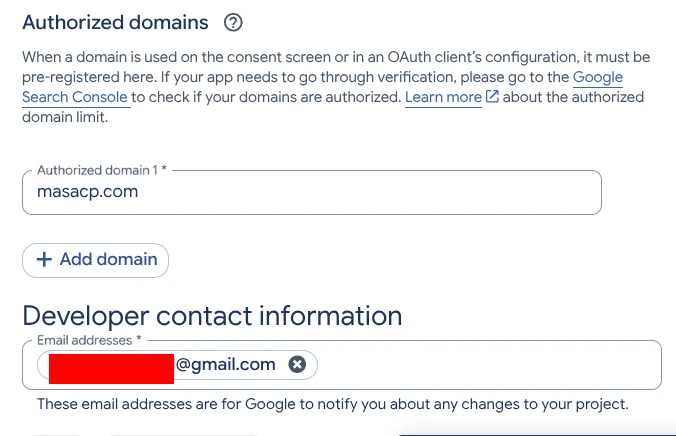
Next, configure the domain boundaries and notification contacts:
- Authorized domains: Enter the apex domain where your MASACP server or authority portal is installed (for example,
masacp.com). Do not include protocols (https://) or trailing slashes. - Developer contact information: Enter your technical email address where Google can send security and API maintenance notifications.
4. Creating OAuth 2.0 Web Client Credentials
After establishing the consent identity, generate the Web Client ID and Client Secret that MASACP uses to sign token handshake requests.
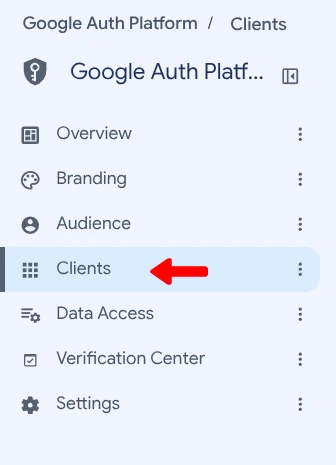
- In the sidebar, click on Clients (or Credentials).
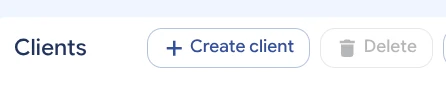
- Click the + Create client (or Create Credentials > OAuth client ID) button.
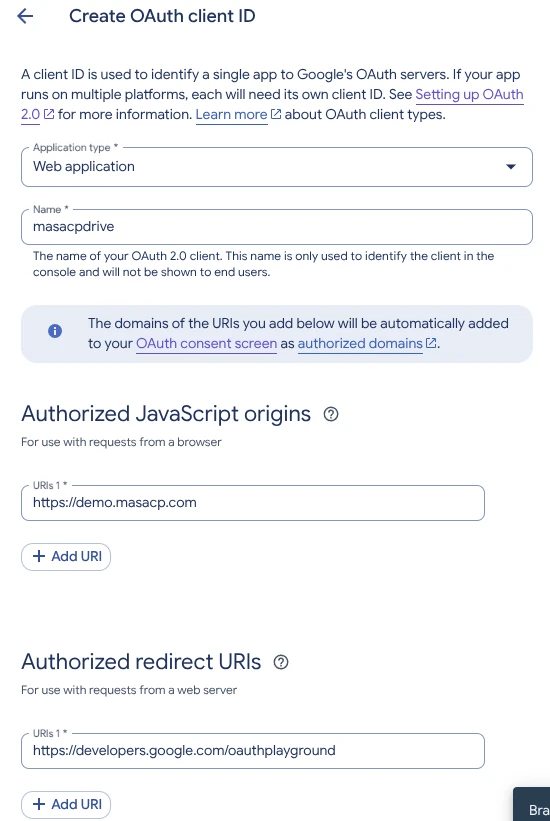
On the Create OAuth client ID form, enter the following exact settings:
Web applicationmasacpdrivehttps://demo.masacp.com
Enter your control panel root URL without subpaths or trailing slashes.
https://developers.google.com/oauthplayground
This official Google redirect endpoint is pre-configured in MASACP to capture the authorization code securely.
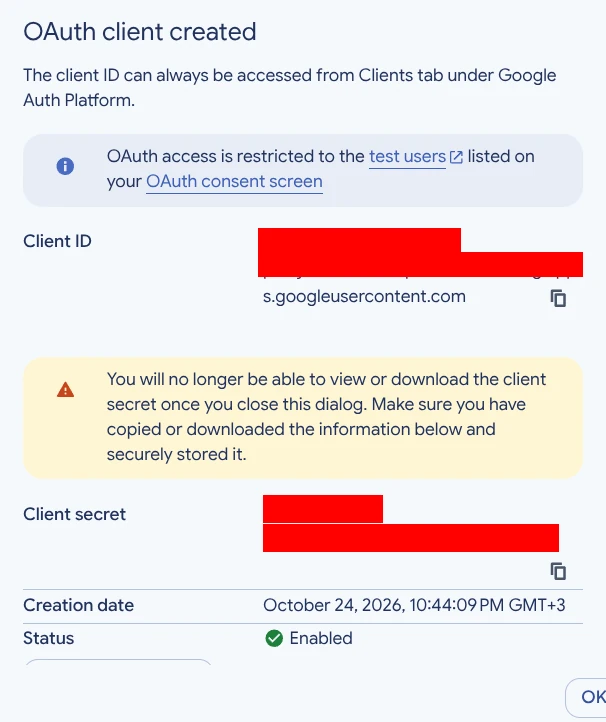
Click Create. A confirmation modal titled OAuth client created will display your generated Client ID and Client Secret. Use the copy buttons to store both values securely.
5. Authorizing Test Users in Testing Mode
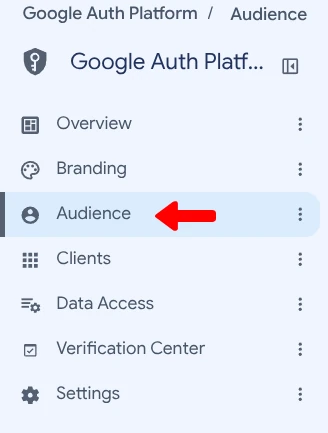
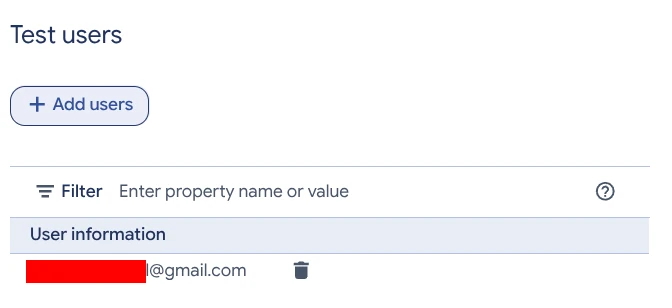
Error 403: access_denied message unless the Google Account is explicitly pre-registered under Test Users.- From the left navigation panel, click on Audience.
- Under the Test users card, click + Add users.
- Enter the exact Google Account email address where your backups will be stored.
- Click Save to register the test user.
6. Authorizing MASACP and Exchanging Authorization Code
Return to your MASACP control panel to finalize the handshake:
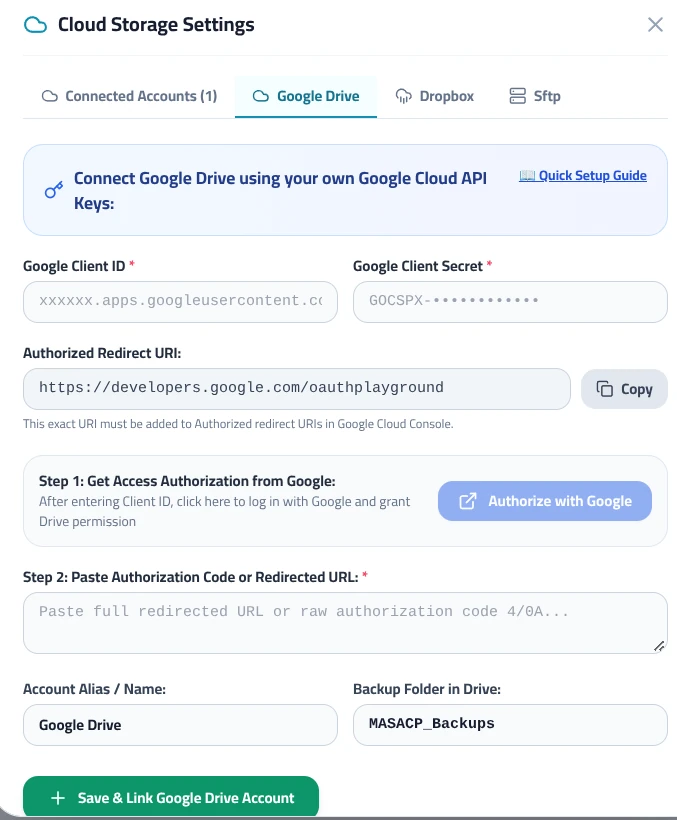
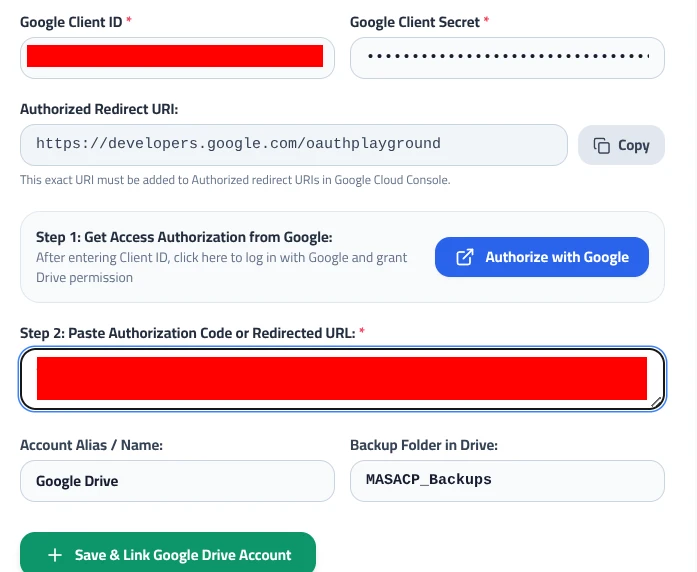
- Navigate to Backups > click Cloud Storage Settings > select the Google Drive tab.
- Paste your Google Client ID and Google Client Secret into their respective input fields.
- Under Step 1, click the blue button: Authorize with Google.
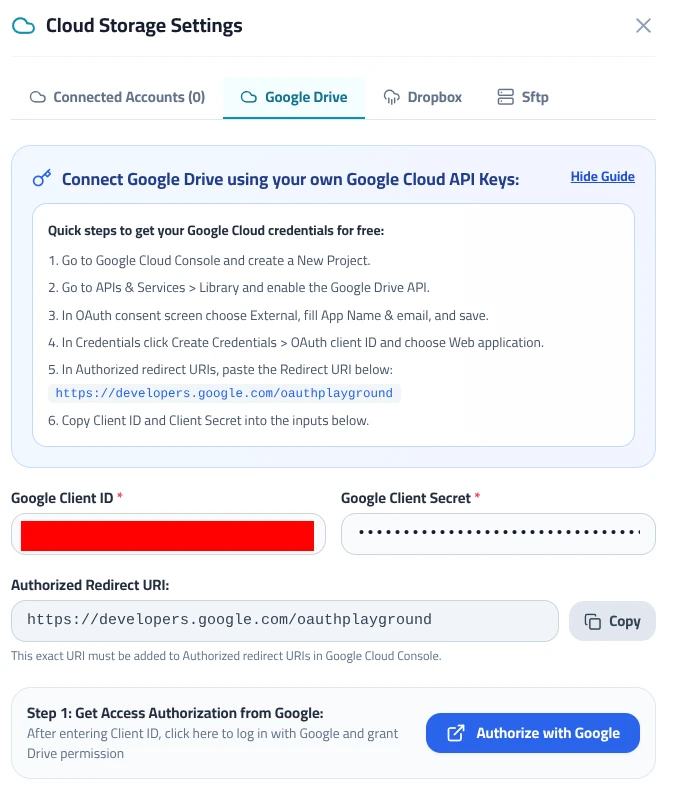
A Google authentication window will open. Follow these consent steps:
- Select the authorized Google account previously added to your Test users list.
- When presented with the Google hasn’t verified this app warning screen, click Continue. This notification is expected for private, self-hosted applications that do not undergo public Google verification.
- Review the permission request (See, edit, create, and delete only the specific Google Drive files you use with this app) and click Continue.
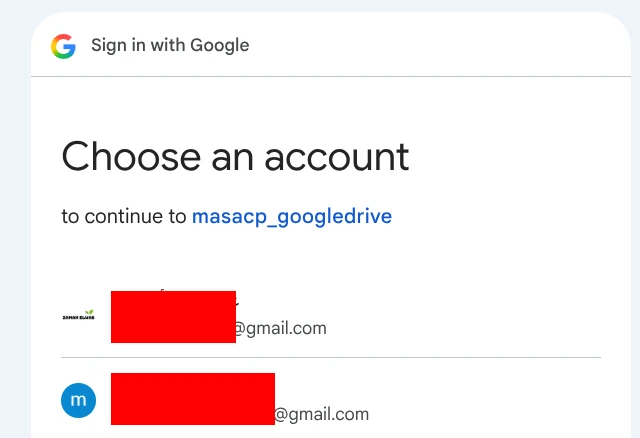
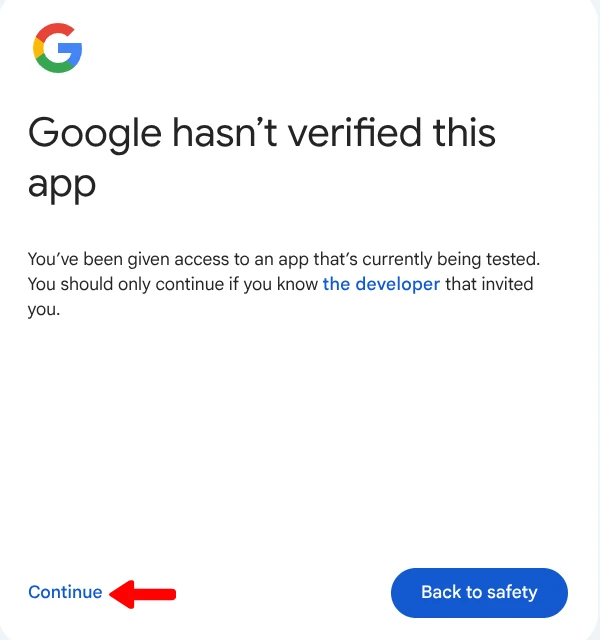
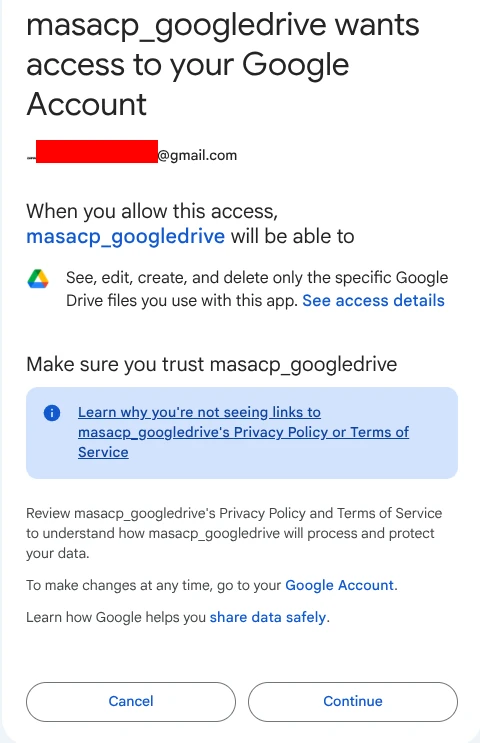
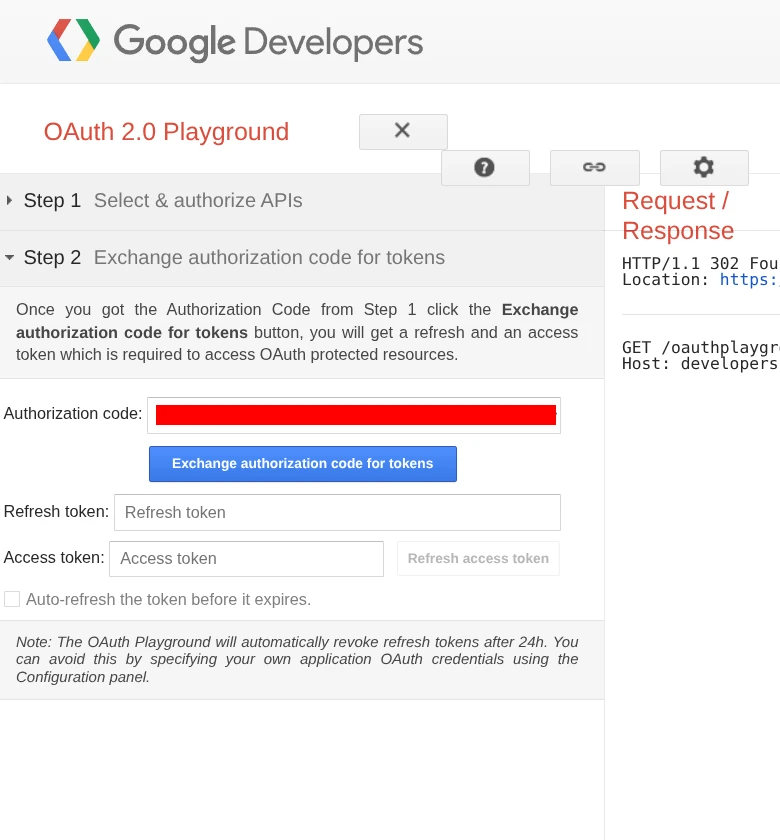
Upon granting consent, you will be redirected to the Google OAuth 2.0 Playground window containing an Authorization code: field.
DO NOT CLICK the blue Exchange authorization code for tokens button on the Google Playground page!
OAuth authorization codes are strictly single-use. If you click the Exchange button on Google Playground, the code will be redeemed immediately by Google’s playground tool, invalidating it for MASACP and resulting in a 400 Bad Request (invalid_grant) error.
Troubleshooting: If you accidentally click the Exchange button or experience a redemption error, simply close the window, return to MASACP, and click “Authorize with Google” again to issue a fresh, unredeemed code.
Copy the raw string from the Authorization code: input box (or copy the entire URL from your browser address bar).
Return to the MASACP window, paste the code into Step 2: Paste Authorization Code or Redirected URL:, configure your preferred Backup Folder in Drive (default is MASACP_Backups), and click Save & Link Google Drive Account.
7. Verification and Remote Directory Partitioning
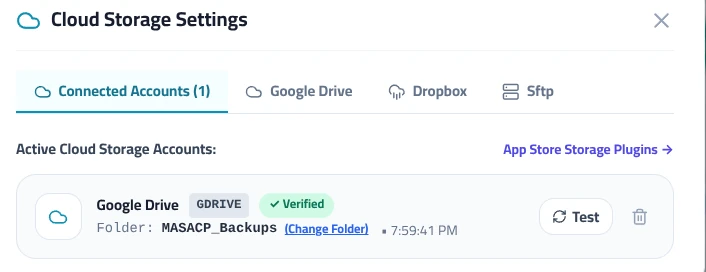
MASACP’s backend engine immediately communicates with Google’s OAuth endpoints, exchanges the authorization code for a permanent offline refresh token, verifies API communication, and provisions your remote folder hierarchy.
Under the Connected Accounts tab, the Google Drive integration will display an active status with a Verified badge, showing the remote target folder and an on-demand Test button for ongoing health verification.
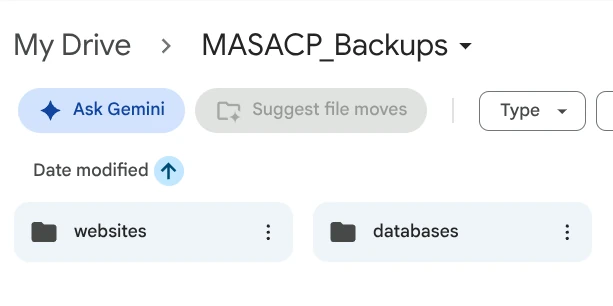
Inside your Google Drive, navigate to My Drive > MASACP_Backups. The engine automatically creates two dedicated partitions:
- websites: Dedicated repository for website tarball archives, WordPress uploads, configurations, and tenant document roots.
- databases: Isolated folder storing compressed MySQL/MariaDB database dumps (
.sql.gz).
Your Google Drive integration is now fully active. You can select Google Drive as a primary destination when running manual snapshots or configuring automated daily and weekly backup schedules.