MASACP features an isolated Multi-PHP architecture allowing you to run multiple PHP versions simultaneously (from PHP 7.4 up to PHP 8.5+). Learn how to install runtimes, apply zero-downtime security patches, understand Reload versus Restart, and assign or switch PHP versions for any website.
Each installed PHP runtime operates as an independent systemd service with dedicated UNIX sockets and separate process managers. Changing or updating one PHP version has zero impact on websites running under different PHP versions.
1
Accessing & Installing PHP Runtimes
To manage your server’s PHP environments, navigate to PHP from the main left sidebar. The page displays cards for all supported versions:
- Installing New Versions: If a version is not installed, click the Install button on its card. MASACP automatically downloads the packages from the official repositories, sets up the PHP-FPM pool, and starts the service.
- Active Toggle Switch: Each installed card features an Active toggle. Turning this off disables the version globally, preventing new sites from selecting it while keeping installed packages intact.
- Security Updates: When a new upstream security patch is released, an alert banner with an Update Runtime button appears on the card. Clicking it upgrades the package and tests the FPM configuration syntax automatically.
2
Understanding Reload vs. Restart
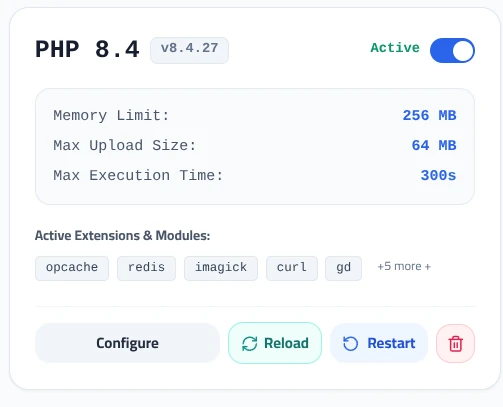
Each installed PHP card provides two distinct operational controls:
Reload (Zero-Downtime)
Recommended
Gracefully instructs PHP-FPM master processes to reload worker configurations. Active website requests finish without interruption, and new parameters take effect immediately on subsequent visits with zero downtime.
Restart (Service Reboot)
Troubleshooting
Completely stops and re-initiates the PHP-FPM system daemon. Use this if processes become unresponsive, when flushing stubborn memory leaks, or during emergency service recovery.
3
Checking a Website’s Active PHP Version
You can quickly verify which PHP version is running any website:
- Click on Websites in the left sidebar.
- In the websites table, find your domain name.
- Look at the PHP column: an active badge clearly indicates the exact version powering that site (e.g.
8.3or8.4).

4
Switching a Website to Another PHP Version
Changing the PHP version for an existing website takes only two clicks and requires zero downtime:
- In the Websites table, locate the target website.
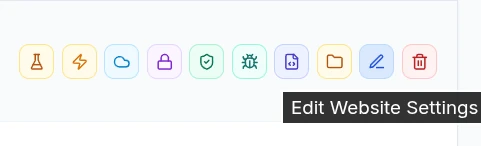
- Click the blue pencil icon titled Edit Website Settings in the right-hand action bar.
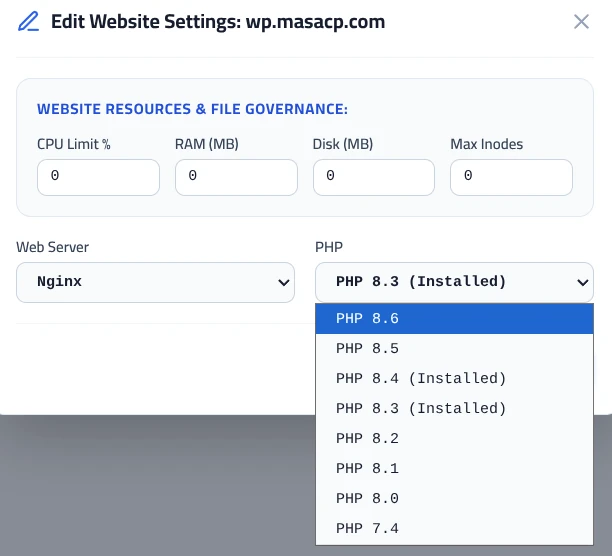
- In the modal window, click the PHP dropdown menu.
- Select your desired installed version (e.g. switch from
PHP 8.3 (Installed)toPHP 8.4 (Installed)). - Click the blue Save Settings button.
MASACP instantly updates the web server configuration (Nginx or OpenLiteSpeed) to redirect incoming traffic to the selected PHP-FPM socket, reloading the service gracefully without disconnecting active users.
Best Practices for PHP Version Management
Before upgrading a production site to a newer PHP release (e.g. PHP 8.4), check that your plugins, themes, or custom code are compatible with any deprecated functions. You can test compatibility in a cloned sandbox using the Staging / Clone tool in the WordPress Toolkit.
If you want all newly created websites to automatically adopt a specific PHP version (such as PHP 8.3), you can configure the default runtime under Settings → Server & Security Defaults.