A comprehensive guide to utilizing the built-in cloud code editor, configuring multi-file split editing, executing regex find-and-replace queries, and recovering from syntax errors using the automated rolling backup system.
Modern In-Browser Development Environment
Modifying website scripts and configuration files traditionally required downloading files via FTP, editing them in a local desktop IDE, and re-uploading them—a slow workflow prone to synchronization conflicts. MASACP Studio provides a complete web-based development environment integrated directly into the control panel, featuring syntax highlighting, multi-pane split viewing, and a native safety net against fatal syntax errors.
Split View Mode
Cross-reference and edit two files side-by-side with global save controls.
Find & Replace
Full support for regular expressions, case matching, and batch replacement.
Automatic Backups
Rolling 3-step snapshots protect against syntax errors and broken scripts.
Step 1: Launching MASACP Studio & Exploring the Interface
To open any code or configuration file (such as PHP, JavaScript, Python, JSON, HTML, or CSS) in the editor:
- In the File Manager, double-click on the desired file, or click the three vertical dots and select Edit.
- The full-screen MASACP Studio interface initializes with your selected file loaded.
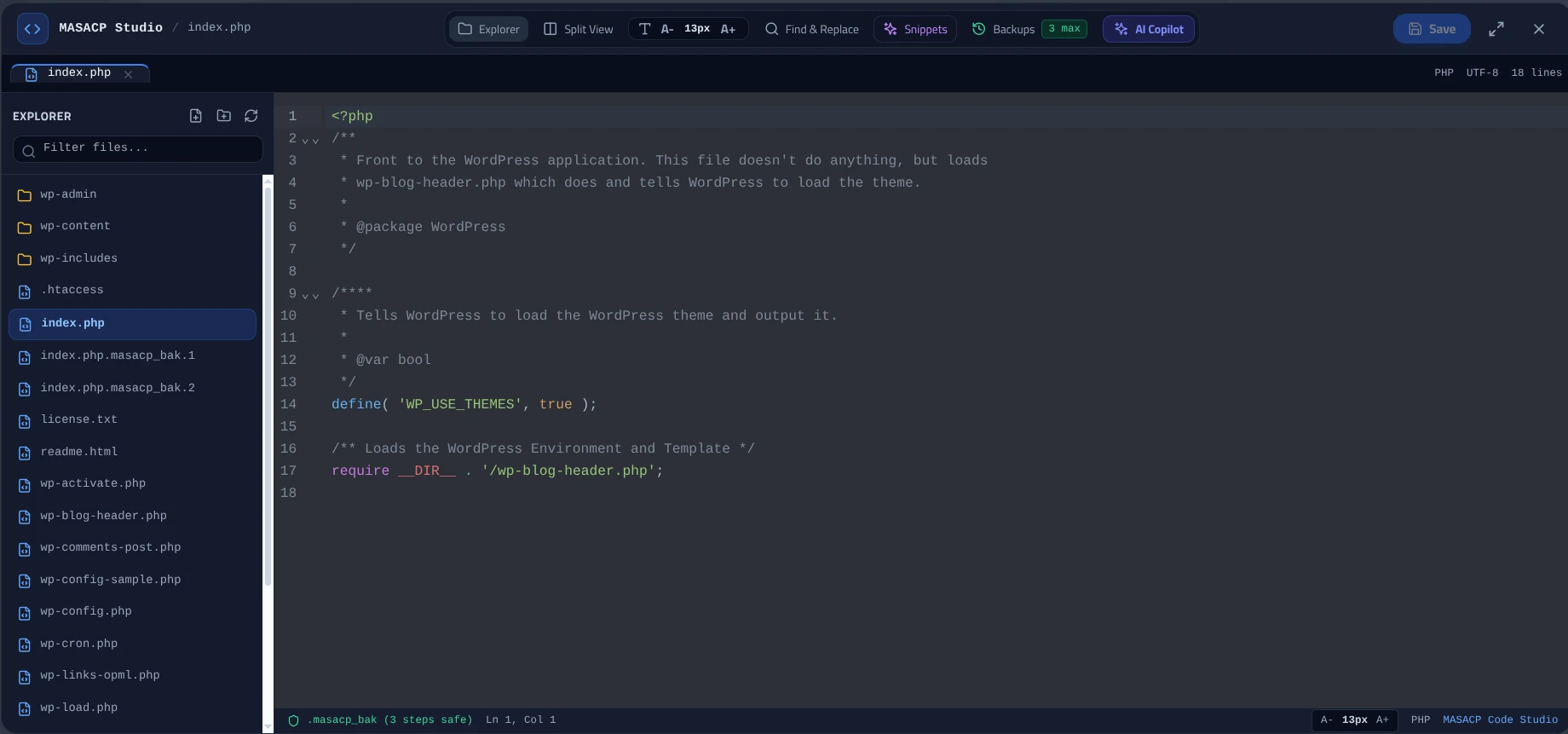
Key Studio Interface Components:
- File Explorer Sidebar: Browse the directory tree, create files/folders, and use the filter input to quickly locate assets without leaving the editor.
- Dynamic Font Controls: Use the
A- 13px A+buttons on the top bar to scale font sizes for optimal readability. - Snippets & AI Copilot: Insert pre-configured code structures and leverage inline assistance for routine development tasks.
- Status Bar: Displays current line and column coordinates, character encoding (
UTF-8), programming language mode, and backup safety status.
Step 2: Multi-File Editing with Split View
Web development frequently requires cross-referencing definitions across two separate files, such as reviewing an environment configuration (.env) while editing a database abstraction script, or comparing modified templates.
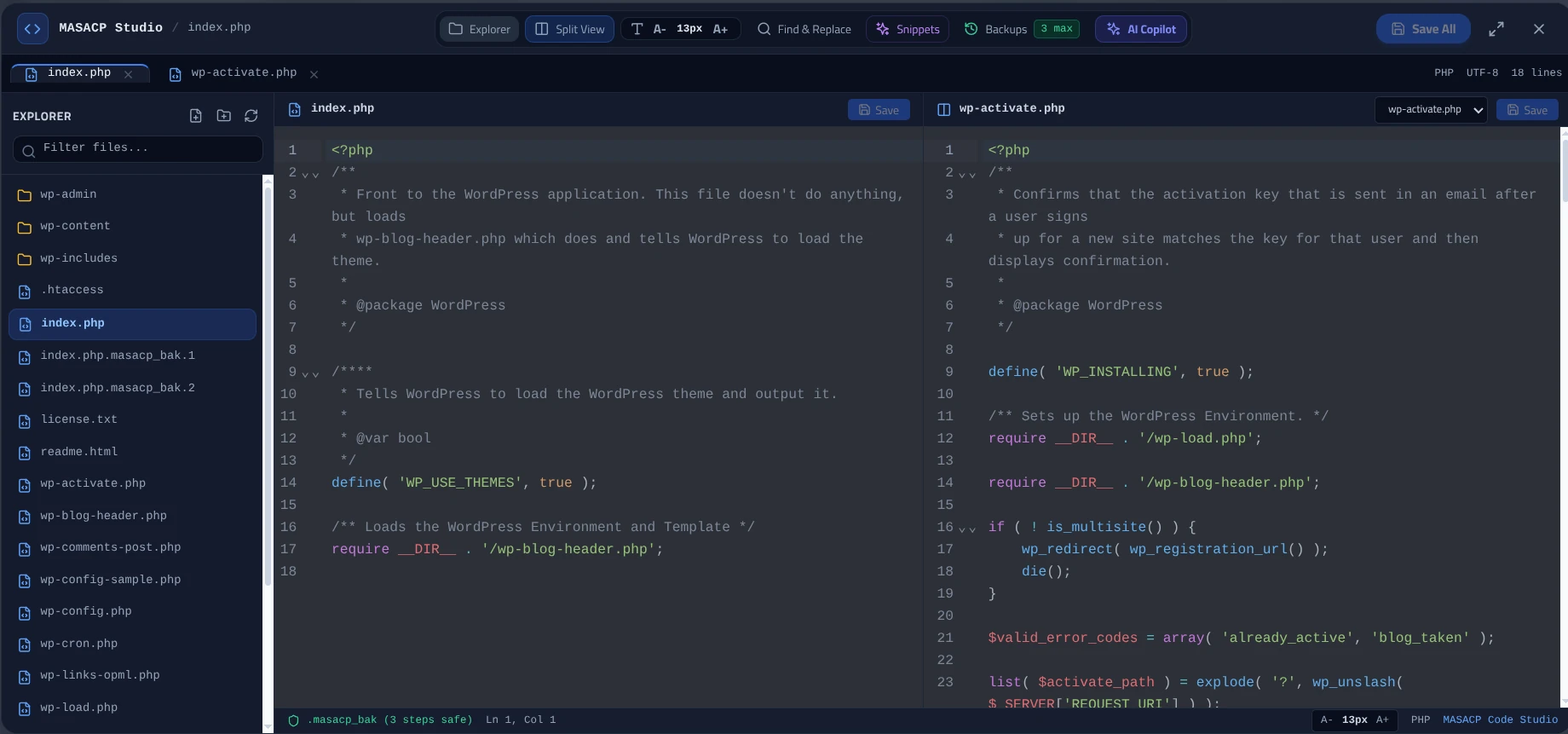
- Click the Split View button in the top action bar. The editor workspace splits into two distinct, side-by-side editing panes.
- Select an open tab in the left pane (e.g.,
index.php) and choose a secondary file from the explorer to open in the right pane (e.g.,wp-activate.php). - Each pane operates independently with its own scroll position, cursor tracking, and individual Save button.
- To commit modifications across both panes simultaneously, click the Save All button located at the top-right corner.
Step 3: Advanced Find & Replace
To perform targeted code refactoring or bulk string substitutions across the current file:

- Click the Find & Replace button in the toolbar, or press the standard shortcut (
Ctrl + F/Cmd + F). - Enter your target string in the Find… input field, and enter the substitution string in the Replace with… field.
- Configure matching modifiers as required:
- Match Case (Aa): Restricts results to exact character casing matches.
- Regular Expression (.*): Enables full regex evaluation for complex pattern matching (such as URL structures or database prefixes).
- Navigate occurrences using the up (
^) and down (v) arrows, and execute individual updates via Replace or bulk substitution via Replace All.
Step 4: Automated Rolling Backups (.masacp_bak)
A primary risk of editing live production scripts is introducing an accidental syntax error—such as a missing semicolon or unmatched bracket—which can immediately cause an HTTP 500 Internal Server Error.
To mitigate this risk, MASACP Studio incorporates an automatic rolling backup engine that operates silently in the background whenever a save event occurs.
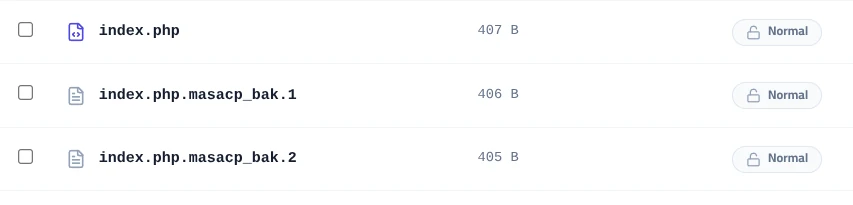
How the 3-Step Rollback Mechanism Works:
- Pre-Save Snapshot: Before overwriting your active file (e.g.,
index.php), the editor creates a verbatim duplicate namedindex.php.masacp_bak.1. - Rolling Versioning: Subsequent saves rotate older snapshots into
.masacp_bak.2and.masacp_bak.3, maintaining a history of up to 3 safe revision steps. - Editor Indicator: The bottom status bar displays
.masacp_bak (3 steps safe), confirming active rollback protection.
Instant Recovery Procedure:
If a script modification results in a syntax error or broken website layout, open the Backups (3 max) dropdown in the editor toolbar, or return to the File Manager and restore filename.masacp_bak.1 to immediately return your site to its last working state.
Development & Deployment Best Practices
- Syntax Verification: Always verify that braces, brackets, and quotes are properly closed before clicking Save.
- Post-Testing Cleanup: Once you have verified that your edits work as expected in production, you can remove older
.masacp_bakfiles to keep your directory clean. - Use Split View for Configuration Drift: When updating application settings, place your
.env.examplein the left pane and active.envin the right pane to ensure no required environment keys are missed.