A comprehensive guide to managing server assets via the web interface, utilizing quick directory jumps, calculating directory sizes, adjusting POSIX permissions (chmod), and applying kernel-level immutable protection (chattr +i).
Native Web File Management Architecture
The control panel includes a high-performance web file manager engineered to provide desktop-grade file manipulation directly from the browser. It replaces complex command-line sessions while preserving native Linux POSIX security, file ownership rules, and attribute controls.
Quick Jumps
One-click bookmarks to websites, system configurations, and log directories.
Visual Chmod
Granular octal and symbolic permission management with recursive inheritance.
chattr +i Locking
Kernel-level immutable locks preventing unauthorized edits or file tampering.
Step 1: Navigating the Filesystem & Quick Jumps
Upon opening the File Manager from the main menu, you are presented with a unified workspace featuring quick-navigation bookmarks, breadcrumb path tracking, and live directory listings.
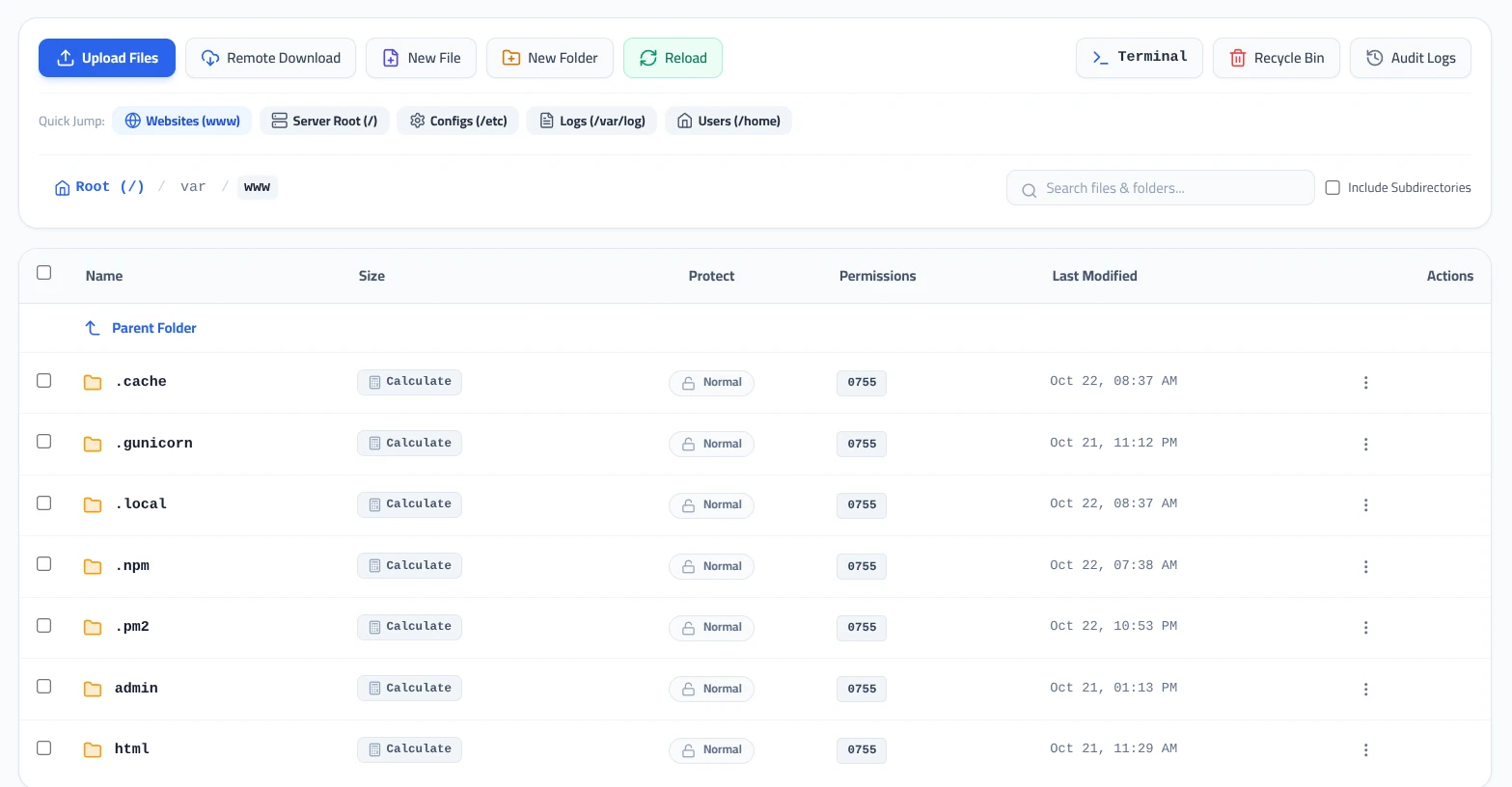
Quick Jump Bookmarks:
- Websites (/www): Takes you directly to the document root where hosted website directories reside.
- Server Root (/): Navigates to the top-level server root directory.
- Configs (/etc): Provides immediate access to web server, PHP, and service configuration files.
- Logs (/var/log): Opens the system logging directory for troubleshooting runtime and access events.
- Users (/home): Navigates to isolated home directories assigned to system accounts and tenants.
Top Action Bar Controls:
- Upload Files: Upload local files from your computer to the currently opened folder.
- Remote Download: Fetch files directly from an external URL into the current directory.
- New File / New Folder: Create new empty files or subdirectories immediately.
- Search with Subdirectories: Filter files by name within the current folder, or check
Include Subdirectoriesfor recursive directory searches.
Step 2: Context Menu & File Properties
Clicking the three vertical dots on any file or folder row—or right-clicking the item—opens the context action menu.
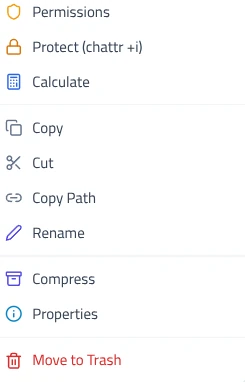
Standard Item Operations:
- Calculate: Directory sizes in Linux are not indexed by default. Clicking Calculate asynchronously measures the total disk space utilized by all files within that folder.
- Copy / Cut / Rename: Standard clipboard actions to duplicate, move, or rename items within the tree.
- Copy Path: Copies the absolute server path directly to your clipboard for use in configuration files or scripts.
- Compress: Packages selected files and folders into compressed ZIP or TAR archives.
- Move to Trash: Safely transfers items to the Recycle Bin to prevent permanent data loss.
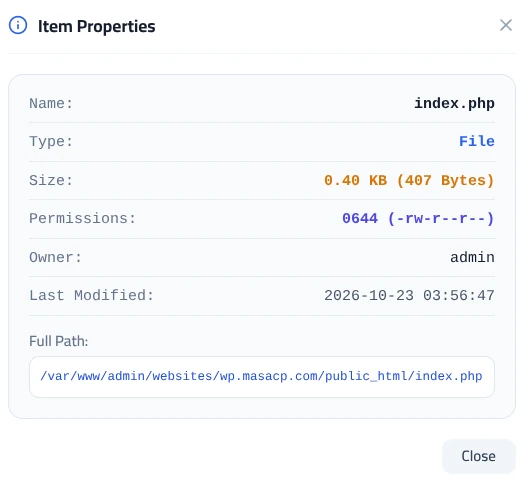
Selecting Properties from the menu displays a diagnostic card containing the item name, MIME type, exact size in bytes, current POSIX permissions in both octal and symbolic form (e.g., 0644 (-rw-r--r--)), POSIX user owner, last modification timestamp, and full system path.
Step 3: Managing Permissions (Chmod)
Correct file permissions are vital to ensure web server accessibility while preventing unauthorized modifications.
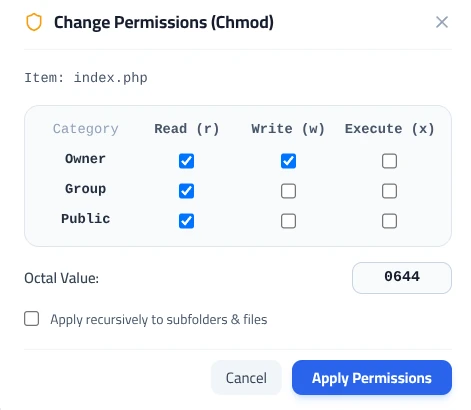
- Click the permissions badge on any row (e.g.,
0755or0644), or select Permissions from the context menu. - In the Change Permissions (Chmod) modal, toggle read (
r), write (w), and execute (x) flags across the three identity categories:- Owner: The POSIX account that owns the file.
- Group: The system group assigned to the file (e.g.,
www-data). - Public: All other system users and world access.
- The Octal Value box updates automatically as you check or uncheck options.
- To apply the same permission structure to all nested subfolders and files inside a directory, check Apply recursively to subfolders & files.
- Click Apply Permissions to save changes.
Step 4: Hardening Files with Immutable Locking (chattr +i)
Standard POSIX permissions allow any process running under the file owner or web server group to modify or overwrite files. In the event of a compromised web application plugin or unauthorized web shell upload, attackers frequently attempt to modify critical files such as index.php, wp-config.php, or .htaccess.
The control panel introduces a 1-click immutable protection mechanism backed by the Linux ext4/XFS filesystem attribute: chattr +i.
What Happens When a File is Protected (chattr +i):
An immutable file cannot be modified, deleted, renamed, or linked to, and no data can be written or appended to it—even by processes running as the file owner or web server worker. It can only be modified after explicitly removing the immutable attribute through the control panel.
- Locate the target file you wish to harden against modifications.
- Click the three vertical dots and select Protect (chattr +i), or toggle the status in the Protect column.
- The item badge changes from
Normalto a secured state, indicating that kernel-level write locking is active. - To unlock the file for legitimate updates or edits, simply select the option again to toggle protection off.
Standard Web Permission Reference Matrix
Use the following standard values to maintain application stability and security across your web root:
| Asset Type | Recommended Octal | Symbolic Form | Security Rationale |
|---|---|---|---|
| Directories & Folders | 0755 | rwxr-xr-x | Allows owner to write while permitting web server to traverse and read contents. |
| Standard Files (PHP, HTML, JS, CSS) | 0644 | rw-r–r– | Prevents public users from modifying script contents while allowing HTTP read access. |
| Sensitive Configs (wp-config.php, .env) | 0600 / 0640 | rw——- | Restricts read access strictly to the owner and trusted execution group. |