/
Server Hardening & Extensions
Server Security Defaults & App Store Security Extensions
A comprehensive guide to defining automated security baselines for all newly provisioned websites, managing enterprise security modules via the App Store, and configuring ClamAV global antivirus policies.
Centralized Security Architecture
Securing a multi-tenant web server requires proactive policy enforcement rather than reactive, per-site remediation. The control panel provides two integrated layers to guarantee baseline protection:
- Automated Provisioning Defaults: Applies essential isolation rules, execution locks, and web application firewall policies automatically whenever a new domain is created.
- Modular App Store Extensions: Provides dedicated management interfaces for server-level security daemons, including ClamAV Antivirus Suite and Coraza WAF.
1. Configuring Server & Security Defaults
To define the global security posture applied to all future websites, navigate to Settings from the main sidebar and locate the Server & Security Defaults section.
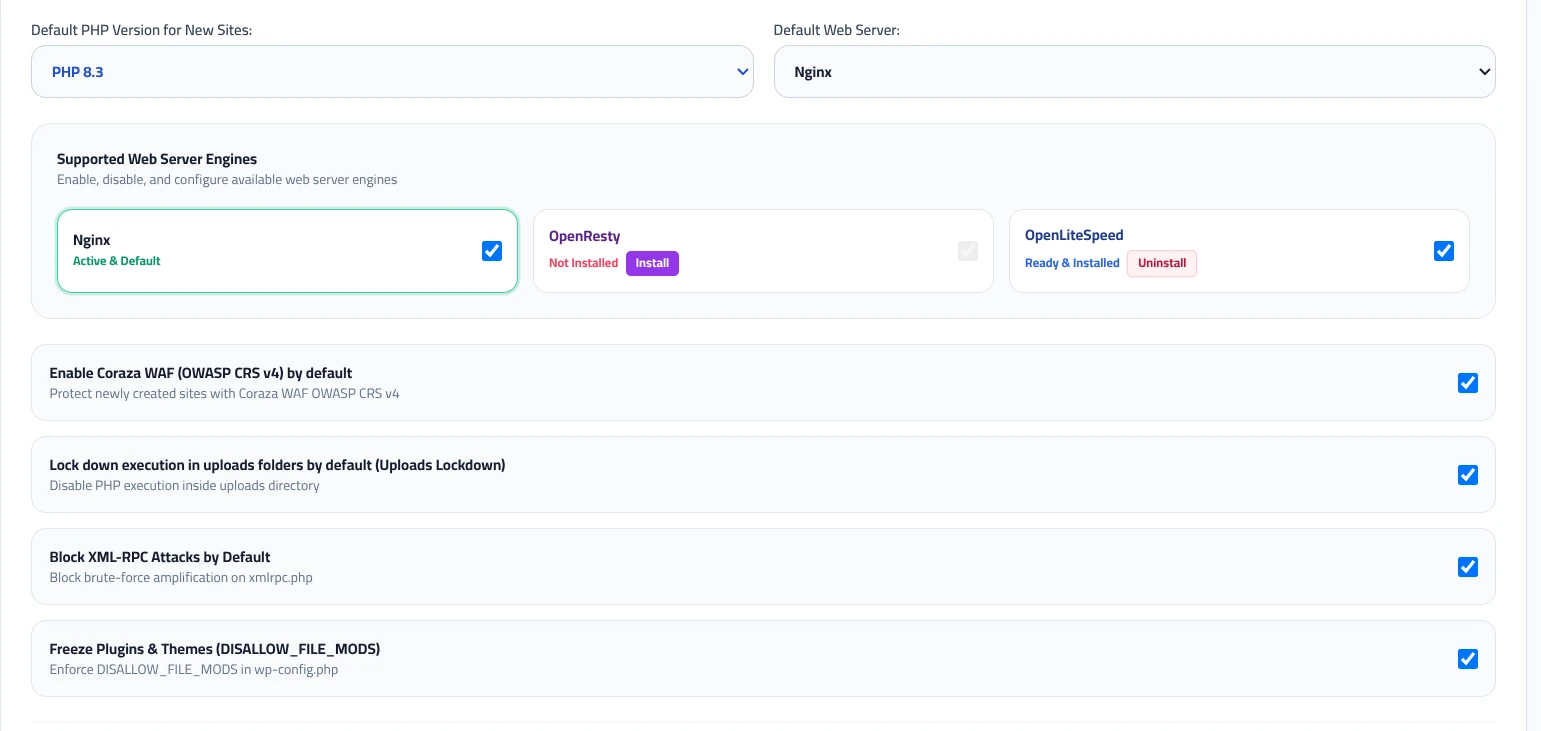
Runtime Engine Baseline
Administrators can select the primary execution engines assigned during automatic site provisioning:
- Default PHP Version for New Sites: Select the default PHP runtime (such as PHP 8.3) assigned to newly added virtual hosts.
- Default Web Server: Choose the default reverse proxy or web server (Nginx, OpenResty, or OpenLiteSpeed).
- Supported Web Server Engines: View active and available web server binaries. Engines can be installed, enabled, or uninstalled with one click.
Automated Security Hardening Toggles
Enable Coraza WAF (OWASP CRS v4) by default
Automatically provisions every new website with Coraza Web Application Firewall rules active. This shields websites immediately against SQL injection, cross-site scripting (XSS), and automated scanners without requiring manual per-site activation.
Lock down execution in uploads folders by default (Uploads Lockdown)
Injects strict web server rules that block direct execution of PHP scripts and binary files inside user upload directories (such as /wp-content/uploads/). If an attacker manages to upload a web shell disguised as an image, the server refuses to execute it.
Block XML-RPC Attacks by Default
Blocks external requests targeting xmlrpc.php. This mitigates distributed brute-force amplification attacks and unauthorized pingbacks commonly leveraged against WordPress instances.
Freeze Plugins & Themes (DISALLOW_FILE_MODS)
Enforces the DISALLOW_FILE_MODS directive in application configuration files. This prevents administrative users or compromised accounts from installing unauthorized plugins or editing theme source code via the browser interface.
2. Managing Security Extensions in the App Store
The App Store serves as the central hub for installing and managing core server plugins. Under the Security category, two primary defense modules operate as system daemons:
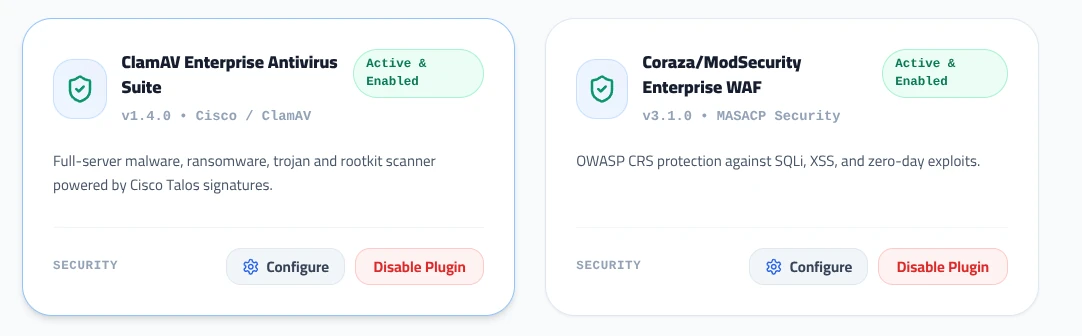
ClamAV Enterprise Antivirus Suite
Active & Enabled
v1.4.0 • Cisco / ClamAV
Full-server malware, ransomware, trojan, and rootkit scanner powered by daily Cisco Talos threat intelligence signatures.
Configure
|
Disable Plugin
Coraza / ModSecurity Enterprise WAF
Active & Enabled
v3.1.0 • MASACP Security
OWASP Core Rule Set (CRS v4) protection against SQL injection, XSS cross-site scripting, and zero-day web application exploits.
Configure
|
Disable Plugin
3. Configuring ClamAV Antivirus Global Policies
To customize scan behavior and quarantine actions, open the App Store, find the ClamAV card, and click Configure.
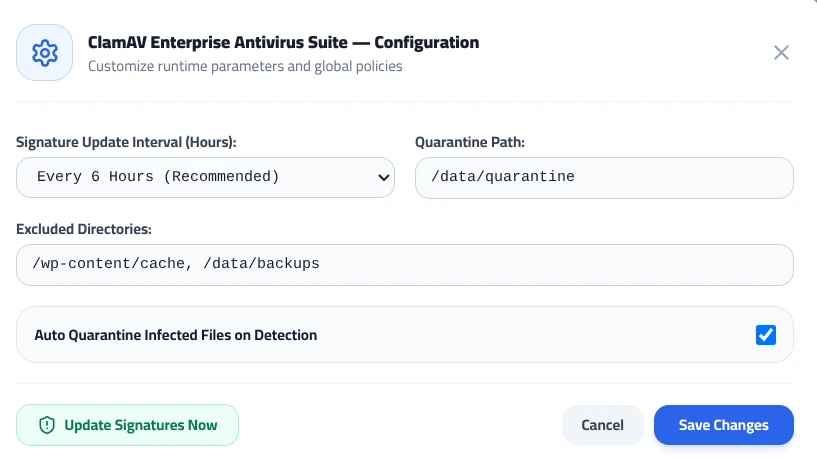
Configuration Parameters:
- Signature Update Interval (Hours):
Defines how frequently the signature daemon queries Cisco Talos mirrors for new definitions. The default recommended setting isEvery 6 Hoursto maintain protection against active malware campaigns without overloading server network resources. - Quarantine Path:
Specifies the dedicated absolute filesystem directory (default:/data/quarantine) where suspicious or infected files are isolated. Quarantined files are immediately stripped of execution privileges. - Excluded Directories:
Defines paths that should be omitted from background scanning routines to prevent unnecessary disk I/O bottlenecks. Typical paths include fast-changing cache and archive directories:/wp-content/cache, /data/backups
- Auto Quarantine Infected Files on Detection:
When checked, any file identified with a positive signature or heuristic trojan match is moved to the quarantine folder automatically, mitigating the threat immediately. - Manual Signature Updates:
Click the Update Signatures Now button to immediately initiate an on-demand database sync without waiting for the scheduled update interval.
Click Save Changes to apply the parameters. The ClamAV daemon will reload seamlessly in the background without interrupting web services.
Summary Checklist
- • Verify that Coraza WAF and Uploads Lockdown are checked under Server & Security Defaults.
- • Ensure both ClamAV and Coraza WAF show
Active & Enabledin the App Store. - • Confirm that the ClamAV signature update interval is set to Every 6 Hours and high-I/O backup paths are excluded.