Learn how to centrally manage your WordPress installations using the MASACP WordPress Toolkit Pro. Master passwordless 1-click administrative logins, emergency permission & role recovery, administrator credentials management, database metrics, and automated site importing.
Whether your WordPress website was installed via the MASACP 1-Click Auto-Installer or migrated manually from an external server, the WordPress Toolkit gives you unified control over administrator authentication, core database connectivity, caching, and security hardening.
1
Importing Existing Sites (Scan & Import)
If you uploaded or migrated WordPress files manually via SFTP or File Manager (as a standard PHP site), you can automatically register it into the WordPress Toolkit:
- Navigate to WordPress Toolkit from the main left sidebar.
- Click the Scan & Import Sites button located at the top of the interface.
- MASACP will scan your virtual host directories for valid
wp-config.phpconfigurations and core WordPress files. - All discovered sites are registered immediately with full access to one-click logins, caching suites, security scanning, and staging tools.
2
Top Action Controls: One-Click Login, Repair Access & Staging
Every WordPress site card includes three vital top action buttons:
→] SSO
One-Click Login (wp-admin)
Logs you straight into the WordPress administrative dashboard (/wp-admin) in a new browser tab without typing usernames or passwords, utilizing temporary single sign-on (SSO) authentication tokens.
Rescue
Repair Admin Access
Emergency self-healing tool that restores corrupted admin roles, re-assigns Super-Admin capabilities, resolves file/folder permission errors (chown/chmod), and unlocks site URLs.
Clone
Staging / Clone
Duplicates your production site into an isolated staging sandbox environment on a subdomain, allowing you to test plugin/theme updates safely before deploying to live visitors.
What “Repair Admin Access” Automatically Fixes:
If you ever encounter the error “You do not have sufficient permissions to access this page” or get locked out of your admin dashboard after a faulty migration or plugin conflict, clicking Repair Admin Access automatically executes:
- Admin Role Re-assignment: Restores
administratorcapabilities and User Level 10 for User ID 1 in the databaseusermetatable. - File Ownership & Permissions: Repairs file permissions (standard
755for directories,644for files) and assigns correct web server ownership. - Site URL Validation: Verifies that
siteurlandhomerecords point accurately to your active domain without redirects or loops. - Self-Healing Guard: Installs a secure Must-Use (MU) guard script to safeguard admin authentication against future lockouts.
3
Site Credentials & Database Information
Under the Overview & Credentials tab, you have a complete control summary of your site’s core settings, administrative access, and database storage:
Site Title & Description
Website Identity
Displays the public Site Title and Tagline description configured in your WordPress General Settings.
Domain URLs
Home & Site Address
Shows the configured Home URL and Site URL with direct clickable links to preview your live website over HTTPS.
Administrator Credentials
Admin User & Password
Displays your primary WordPress administrator username and notification email, alongside a Change Password button to reset the admin password directly without touching MySQL.
Database Details & Storage Metrics
One-Click phpMyAdmin Single Sign-On
MySQL Host Address
Site Database Name
Assigned MySQL User
Database Table Prefix
Total Disk Usage
Active WP Language
* You can click Open Database Manager & phpMyAdmin at the top right to instantly open phpMyAdmin with automatic single sign-on (SSO) to run SQL queries, inspect tables, or optimize data.
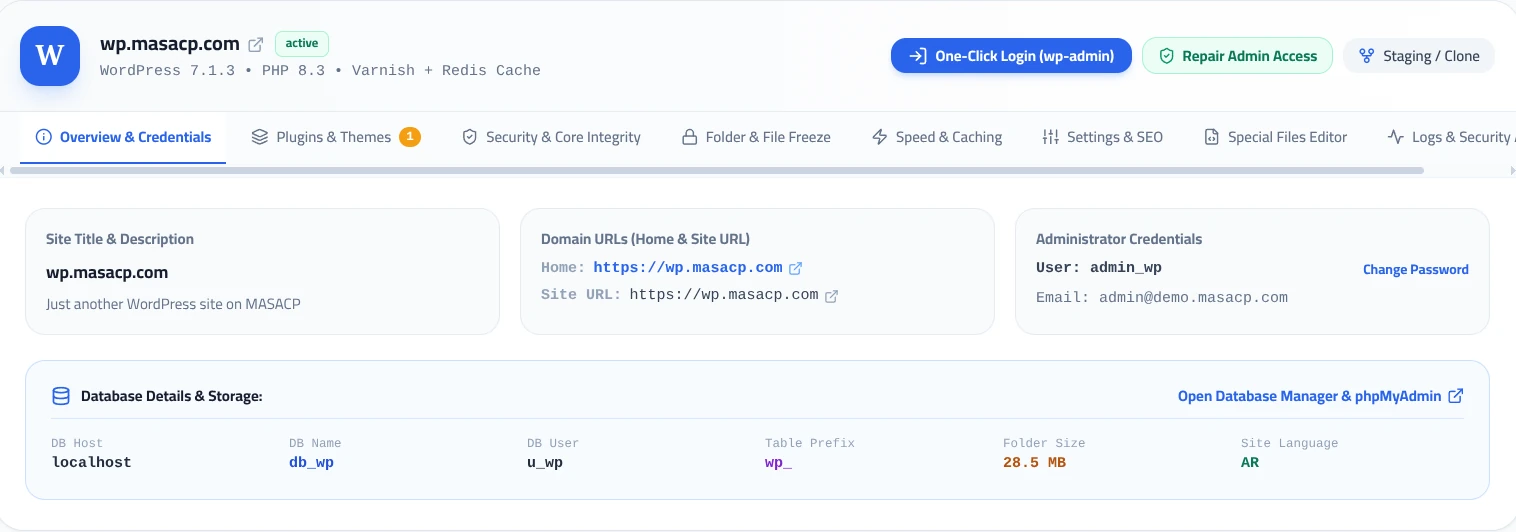 Figure 1: Overview & Credentials tab showing action controls, site metadata, and database details.
Administrator Best Practices
You never need to edit the database manually or use PHP scripts to reset an admin password. Simply click Change Password under Administrator Credentials, enter a new password, and it updates the WordPress user account instantly.
Clicking Open Database Manager & phpMyAdmin logs you directly into the site’s database without prompting for MySQL passwords.