Configure dedicated Dropbox API credentials, establish an auto-renewing offline refresh token connection, and automate off-site backup archiving with zero token expiration hassles in MASACP.
1. Overview and the Long-Lived Token Architecture
Modern cloud security standards deployed by Dropbox enforce short-lived access tokens that automatically expire every four hours (14,400 seconds). Using manually generated tokens for recurring server backups inevitably leads to scheduled job failures as soon as the initial token lifecycle lapses.
MASACP solves this challenge at the kernel level by implementing an enterprise OAuth 2.0 offline authorization handshake:
- Permanent Refresh Token: MASACP negotiates and securely stores an offline refresh token alongside your dedicated
App keyandApp secret. - Silent Background Rotation: Prior to dispatching any manual backup or cron schedule, the backup daemon checks token validity and silently renews the access token in the background.
- Zero Third-Party Relays: Files stream directly from your host filesystem to Dropbox’s API endpoints via encrypted TLS channels without transit through intermediary proxy servers.
2. Creating a Scoped App in the Dropbox Developer Console
Begin by creating a dedicated application in your personal or business Dropbox account:
- Log in to your Dropbox account and visit the Dropbox App Console.
- Click the Create app button on the top right.
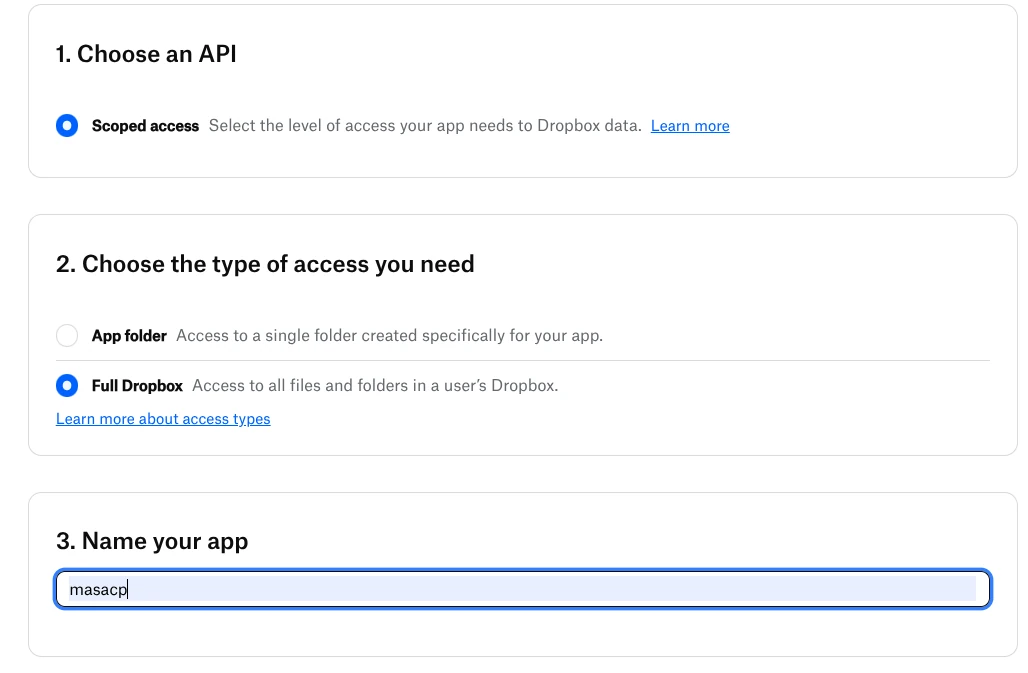
- Under 1. Choose an API, select Scoped access.
- Under 2. Choose the type of access you need, select Full Dropbox (access to files across your account) or App folder depending on your company’s security policies.
- Under 3. Name your app, provide a distinct project name (such as
masacpormasacp-backups). - Click Create app to initialize your application workspace.
3. Granting Content Read and Write Scopes
New Dropbox applications default to minimal read-only metadata scopes. For MASACP to upload archives and verify directory contents, you must enable file write and read permissions:
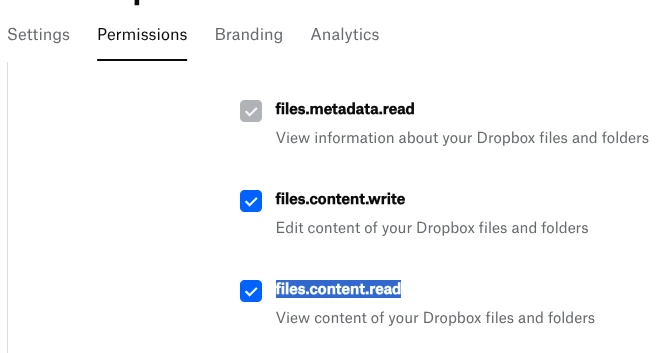
- In your app management interface, click on the Permissions tab.
- Under the Files and folders scope group, check the following two required permissions:
files.content.write: Allows MASACP to upload archive chunks, create folders, and overwrite backup probe files.files.content.read: Allows MASACP to inspect existing backup archives and calculate folder usage.
- Scroll to the bottom of the page and click Submit (or Save changes) to register the updated permissions.
4. Configuring Redirect URIs and Extracting Credentials
Next, configure the OAuth redirect URI and extract the API keys required by MASACP:
- Navigate back to the Settings tab of your Dropbox application.
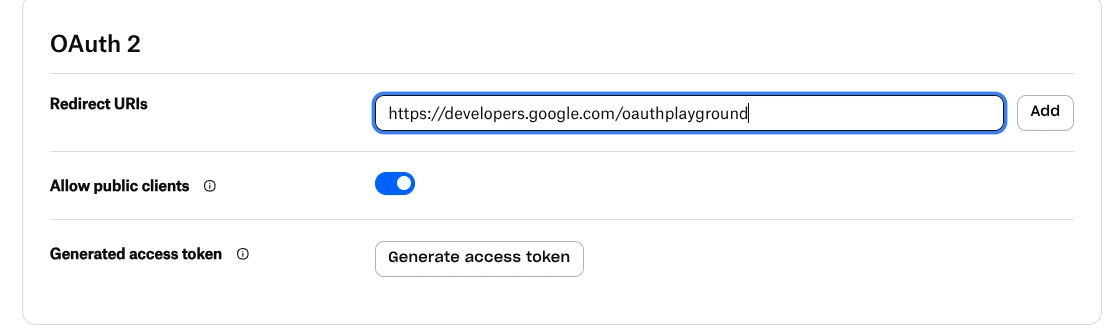
- Locate the OAuth 2 section and find the Redirect URIs input field.
- Enter the exact redirect endpoint pre-configured in MASACP:
https://developers.google.com/oauthplayground
- Click the Add button next to the input field to save the redirect URI.
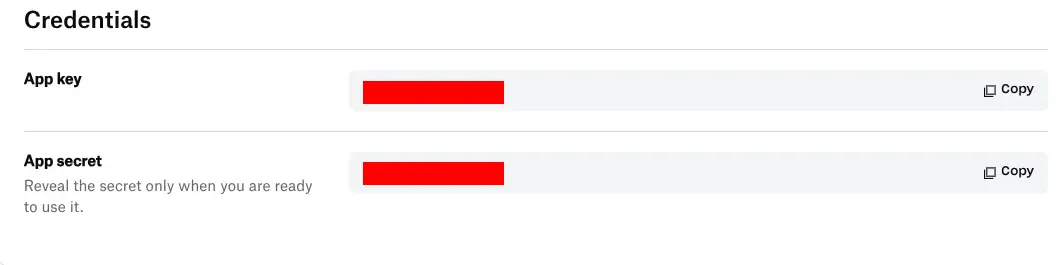
Under the Credentials header in the same Settings tab:
- Copy the App key (client identification string).
- Click the reveal app secret link under App secret and copy the confidential secret key.
5. Executing the OAuth Handshake in MASACP
Open your MASACP control panel and complete the link:
- Navigate to Backups > Cloud Storage Settings > select the Dropbox tab.
- Paste your Dropbox App Key and Dropbox App Secret into their respective fields.
- Under Step 1, click the blue button: Authorize with Dropbox.
A Dropbox authorization popup will launch. Follow the approval prompts:
- When prompted with Before you connect this app… (developer verification advisory), click Continue.
- Review the requested permissions (Edit content of your Dropbox files and folders and view basic information) and click Allow.
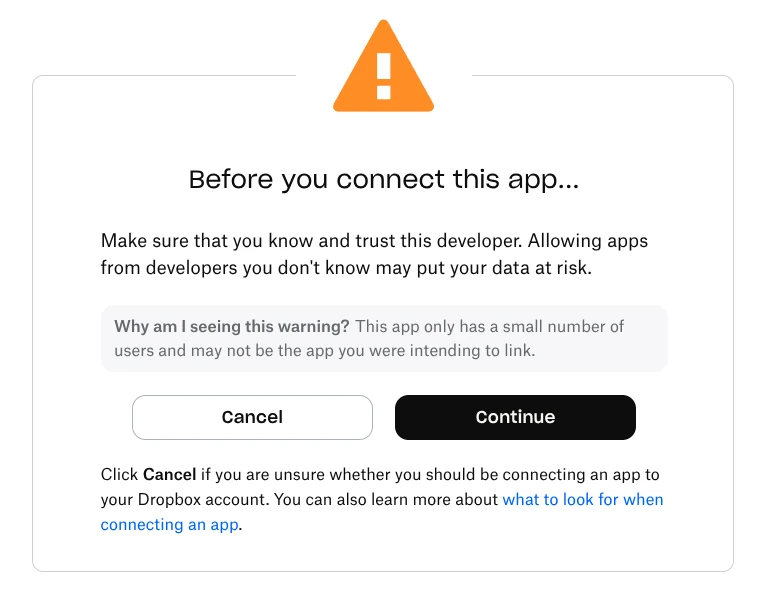
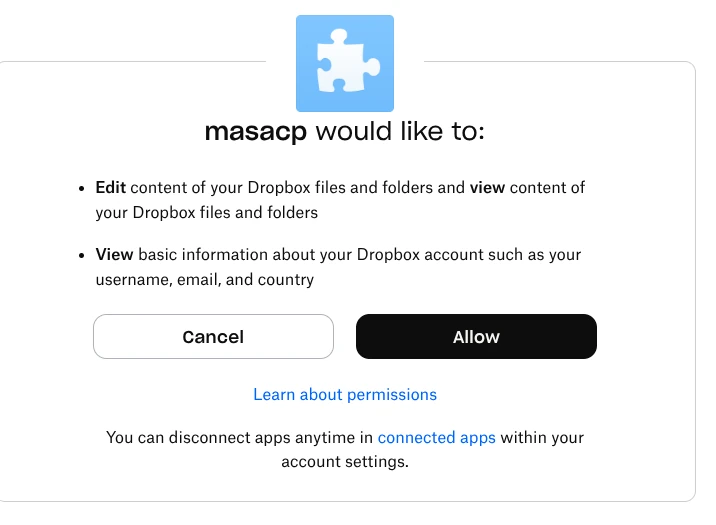
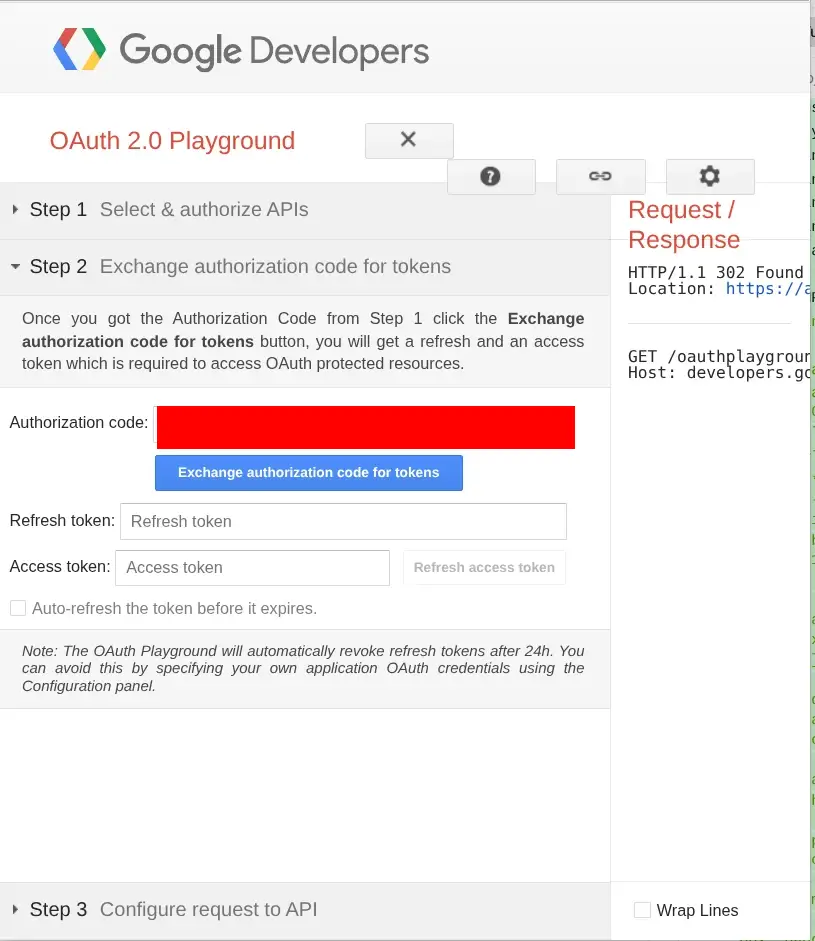
Upon granting consent, you will be directed to the redirect window displaying an Authorization code: text box.
DO NOT CLICK the blue Exchange authorization code for tokens button in the browser window!
The authorization code is strictly valid for a single exchange. Clicking the exchange button inside the browser will redeem the code prematurely, causing MASACP’s token negotiation request to fail.
Copy the string directly from the Authorization code: field (or copy the entire address from your browser address bar).
Return to the MASACP window, paste the code into Step 2: Paste Authorization Code or Redirected URL:, set your remote folder path (default: /MASACP_Backups), and click Save & Link Dropbox Account.
6. Verification and Remote Storage Hierarchy
MASACP immediately exchanges the code with Dropbox’s OAuth server, stores the permanent refresh credentials, provisions probe verification data, and activates the integration.
Under the Connected Accounts tab, Dropbox will appear alongside any existing providers (such as Google Drive) displaying a green Verified badge, active target directory path, and an on-demand Test button.
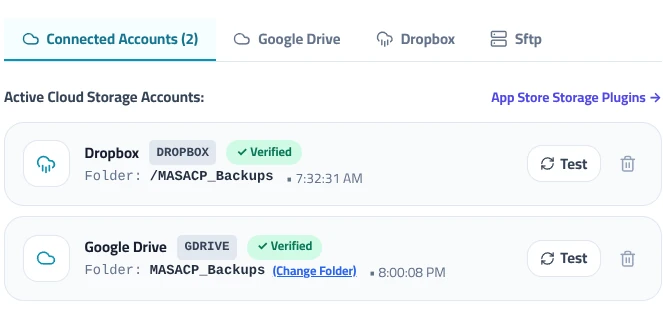
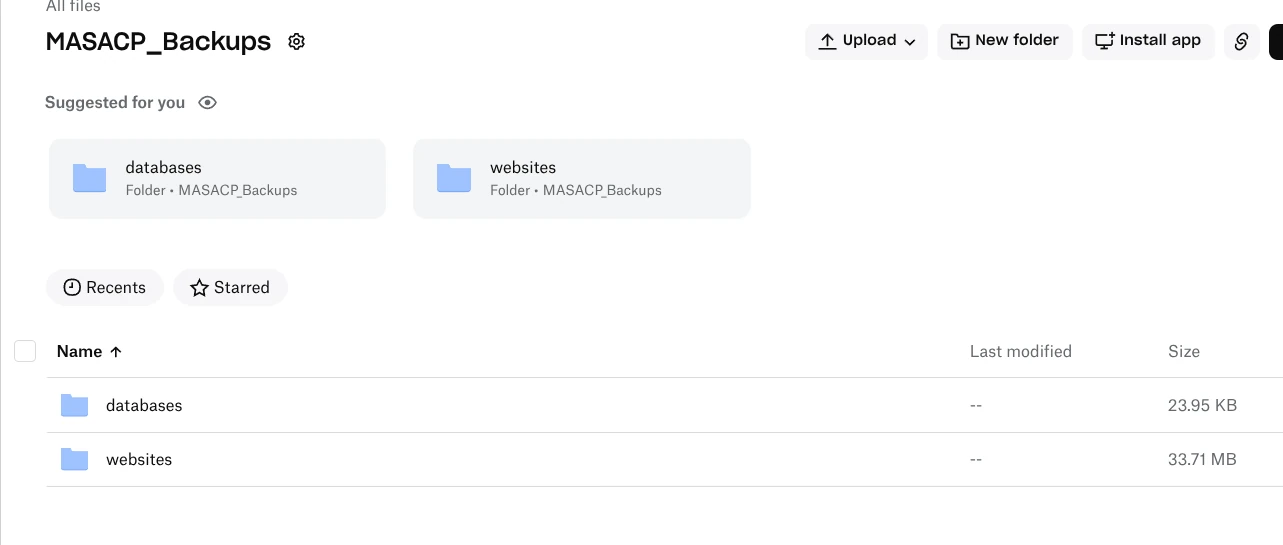
Inside your Dropbox storage under All files > MASACP_Backups, the system automatically structures backup archives into segregated directories:
- websites: Contains compressed tarballs for all web root directories, virtual host configurations, and application files.
- databases: Stores gzipped SQL dumps with timestamped versions for point-in-time recovery.
Your Dropbox integration is now fully operational with auto-renewing credentials. You can select Dropbox as a destination for manual snapshots or automated daily, weekly, and monthly backup schedules.