Configure external SSH/SFTP storage endpoints, verify remote directory write permissions, and safeguard your server against disaster scenarios with independent off-site server synchronization in MASACP.
1. Overview and Off-Site Storage Isolation
While public cloud platforms like Google Drive and Dropbox offer seamless consumer storage, enterprise compliance and disaster recovery architectures frequently demand dedicated, sovereign storage infrastructure. Storing backups on a physically and geographically separated server via SFTP (SSH File Transfer Protocol) ensures that hardware failures, datacenter outages, or account suspensions never jeopardize your mission-critical data.
The MASACP SFTP backup driver delivers enterprise-grade operational features:
- Broad Storage Compatibility: Seamlessly integrates with remote Linux servers, secondary VPS/Dedicated nodes, NAS appliances (Synology, QNAP), and cloud storage boxes (such as Hetzner Storage Box or OVH Cloud Storage).
- Encrypted Transport: All backup streams and authentication handshakes travel through SSH (Secure Shell) encrypted tunnels, preventing payload interception across public networks.
- Automated Connectivity Probing: Whenever an SFTP storage account is added or edited, MASACP executes an automated end-to-end verification handshake (directory creation, write probe, integrity verification, and cleanup) before saving the credentials.
2. Remote Server Prerequisites
Before connecting your SFTP storage endpoint in MASACP, verify the following configuration parameters on the remote backup server:
- SSH/SFTP Service: Ensure the SSH daemon (
sshd) is running and accepting SFTP subsystem connections on the destination server. - Firewall Ingress: Verify that the SSH port (default
22, or your custom port) is open to inbound traffic from your primary MASACP server IP address. - Storage User Privileges: Ensure the designated SSH user has read and write permissions on the target directory path (for example,
/MASACP_Backupsor a tenant home directory).
3. Configuring the SFTP Endpoint in MASACP
To link your remote SFTP destination to the control panel:
- From the MASACP navigation sidebar, navigate to Backups.
- Click on the Cloud Storage Settings button located in the action toolbar.
- Select the Sftp tab in the modal dialog.
Complete the connection form with your remote server parameters:
Primary SFTP
An identifiable label for selecting this storage account across manual backups and schedules.
192.0.2.1
The public IPv4/IPv6 address or fully qualified domain name (FQDN) of the remote backup node.
22
Default SSH port (22) or your custom secure port.
root
The system user on the remote storage server.
••••••••••••••••
The authentication password for the SSH user account.
/MASACP_Backups
The absolute filesystem path on the remote server where backup archives will be stored.
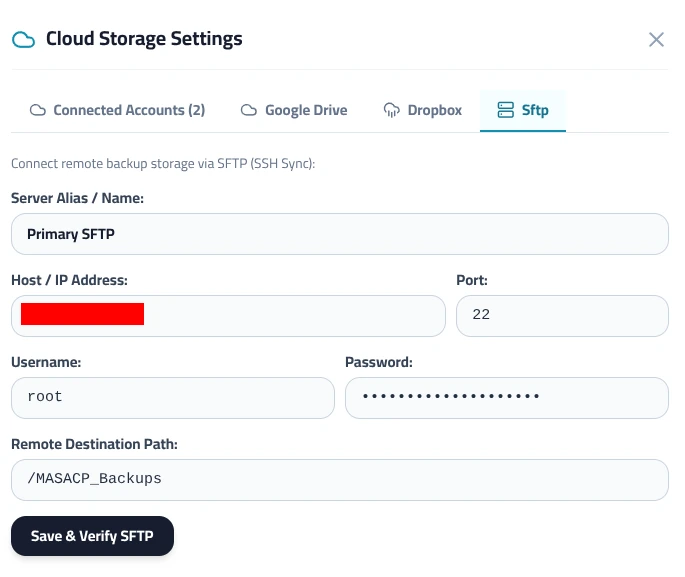
Click the dark Save & Verify SFTP button. MASACP connects to the remote host, validates the SSH cryptographic handshake, provisions the remote directory if missing, uploads a test verification probe, and removes the probe upon successful confirmation.
4. Verification and Storage Fleet Management
Once verified, the new account is automatically registered in the system database and displayed under the Connected Accounts tab.
MASACP supports connecting multiple heterogeneous storage providers concurrently. As illustrated below, administrators can manage a diversified multi-cloud backup fleet consisting of:
- Dropbox: Consumer and workspace cloud storage authenticated via auto-renewing OAuth refresh tokens.
- Google Drive: High-capacity Google Cloud infrastructure partitioned into dedicated application folders.
- Primary SFTP: Self-hosted, sovereign Linux storage nodes managed over direct SSH pipes.
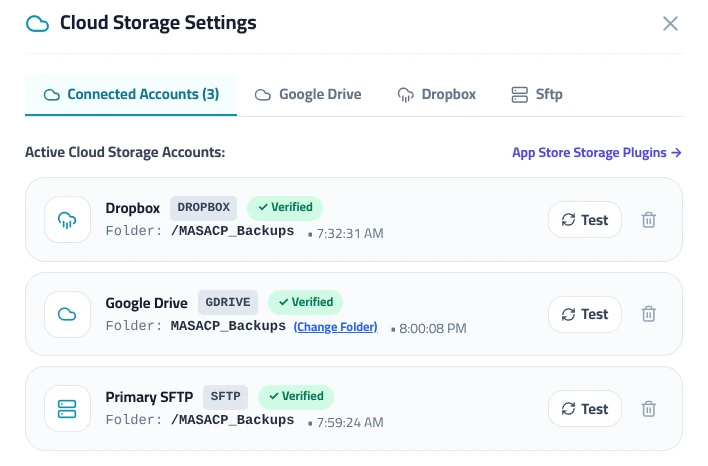
Each linked storage account displays its current operational status:
- Verified Badge: Confirms that read, write, and directory manipulation capabilities were tested and validated successfully.
- Target Folder: Displays the remote path (e.g.
/MASACP_Backups) where server archives will be transferred. - On-Demand Test: Clicking the Test button runs an immediate live probe against the remote server to confirm authentication credentials remain valid.
- Delete Account: Allows safe unlinking of the storage endpoint without deleting existing remote archives.
With your SFTP endpoint active and verified, you can now designate it as the target destination when triggering manual snapshots or scheduling automated daily and weekly server backups.